 E-KO RIP Center
Documentation › Install
Mobile app
Follow production from an iOS or Android phone and get machine alerts.
The E-KO RIP app lets you follow the shop from a phone: print queue, machine status, ink levels and alerts. It warns you as soon as a machine stops with an error, even when the phone is in your pocket. It works on iPhone and Android.
What the app does
- See the print queue of each machine, with the outputs in progress first.
- Start, pause, stop, retry or move an output to the front.
- Check the status of each machine: printing, cutting, idle, unreachable.
- Check the level of each ink and the length of media left on the roll.
- Read the history of the latest alerts.
- Receive notifications for errors, nearly empty ink or failed outputs.
Installing the app
The app will soon be available on the App Store and on Google Play. The download link and the news are announced on the app page: https://e-ko.rip/app/.
Connecting to a server
The app asks which RIP server to connect to. There are two cases: in the shop with the local address, or remotely with E-KO RIP Cloud.
In the shop: local address
The phone must be on the shop's Wi-Fi network.
- Open the app.
- In the Server field (Serveur), enter the address of the RIP server, for example
http://192.168.1.20:8640. This is the address used in the desktop clients (see Install the server). - Tap Continue (Continuer).
- If the server asks for an account, enter the user name and password, then tap Sign in (Se connecter).
An Operator (Opérateur) account is enough to follow the queue and act on outputs. Accounts are managed in the server administration (see Run the server).
The name and password are kept in the phone's secure storage. The app reuses them to reopen the session when it expires, after 12 hours or after a server restart.
Away from the shop: E-KO RIP Cloud
The Cloud lets you reach the shop's server from outside, with no VPN. The server must already be linked to the platform (see E-KO RIP Cloud).
There are two ways to do it:
- Enter the site's remote address in Server, in the form
https://<site>.platform.e-ko.rip, then an account of the RIP server. - Tap Sign in to the cloud (Se connecter au cloud) under the "away from the shop" note.
With Sign in to the cloud:
- Tap Sign in to the cloud. The phone's browser opens on the platform.
- Sign in with the platform account, then authorise the app.
- The app opens on the Your sites screen (Vos sites), which lists the account's sites, online or not.
- Tap the site you want. No second password is requested.
The role shown in the app comes from the one given to the account on the site. Access stays valid for about 180 days.
To sign out of the cloud, tap Sign out of the cloud (Se déconnecter du cloud) on the Your sites screen. You can also disconnect the apps from My account (Mon compte) on the portal (see E-KO RIP Cloud).
The app's tabs
The app has four tabs: Queue, Machines, Alerts and Settings (File, Machines, Alertes, Réglages).
Queue
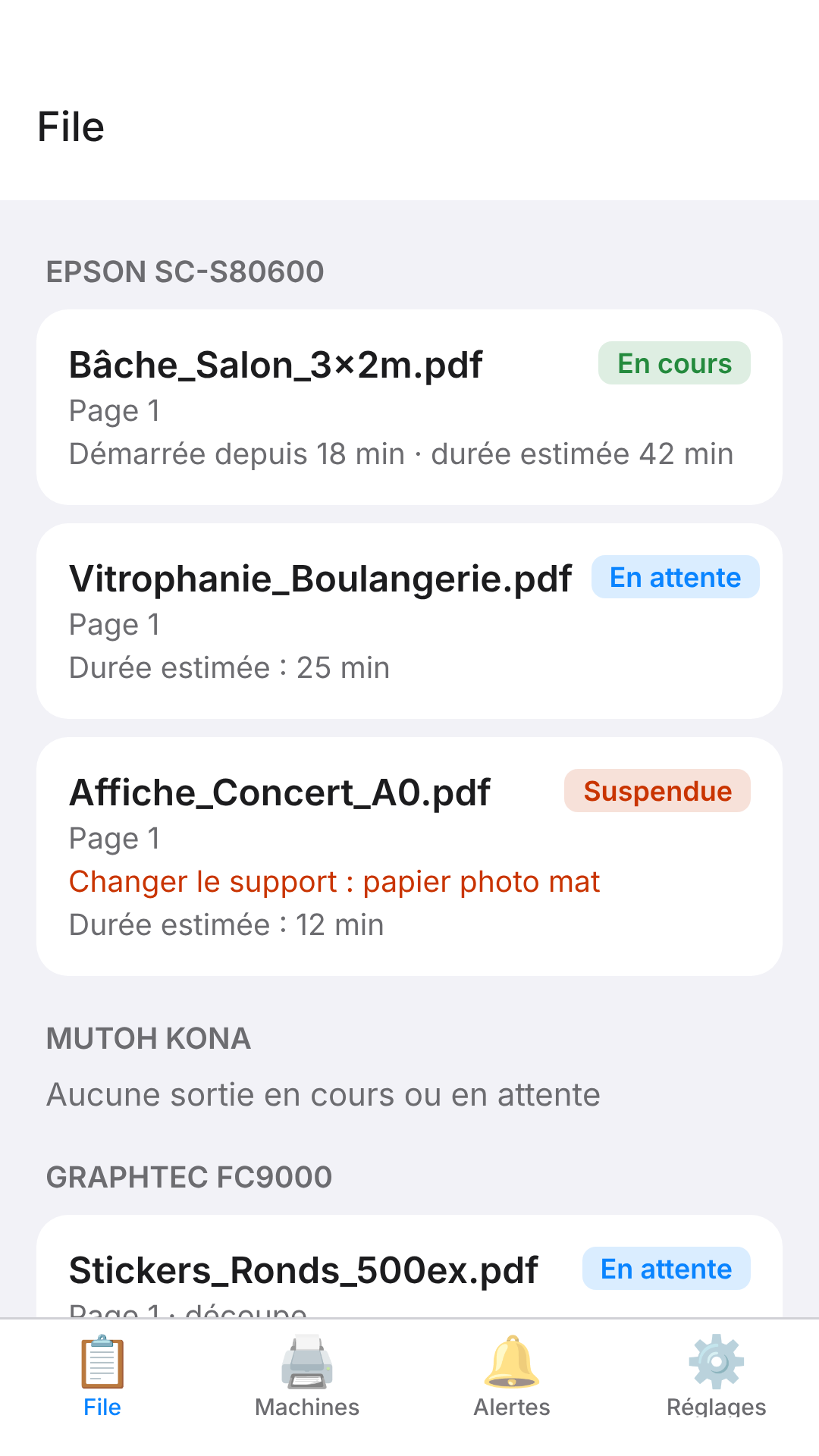
The Queue tab lists the outputs of each machine. Outputs in progress and waiting come first, then the recently finished outputs.
Each output has a status: In progress (En cours), Waiting (En attente), Suspended (Suspendue), Finished (Terminée), Failed (Échec) or Cancelled (Annulée). If an output fails, the error message is shown under it. The elapsed time and the estimated time are shown when they are known.
To act on an output:
- Tap the output.
- Choose the action you want in the list.
- Confirm if the app asks you to.
The actions offered depend on the output's status:
| Output status | Possible actions |
|---|---|
| Waiting | Pause, Move to front (Passer en tête), Stop |
| Suspended | Start (Lancer) or Resume (Reprendre), Move to front, Stop |
| Finished or failed | Retry (Relancer; creates a new, identical output) |
| Nested in a sheet | No action |
Machines
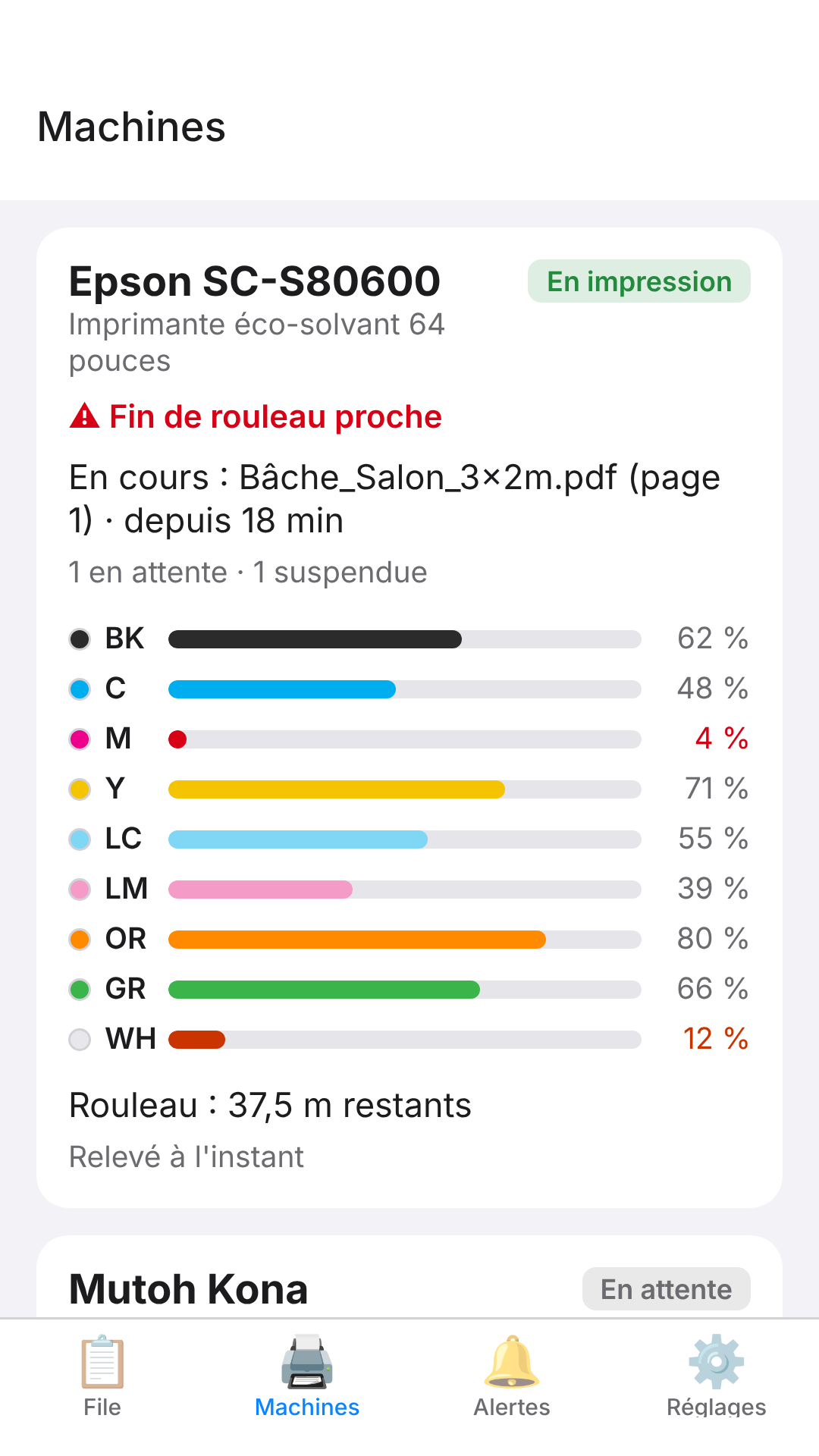
The Machines tab shows one card per machine:
- the status: Printing (En impression), Cutting (En découpe), Idle (En attente) or Unreachable (Injoignable);
- the current output;
- the level of each ink, with low levels highlighted;
- the length of media left on the roll;
- the current alerts (cover open, end of roll…);
- the time of the last reading.
The server polls the Epson machines about once a minute. The values shown are therefore at most a few moments old.
Alerts
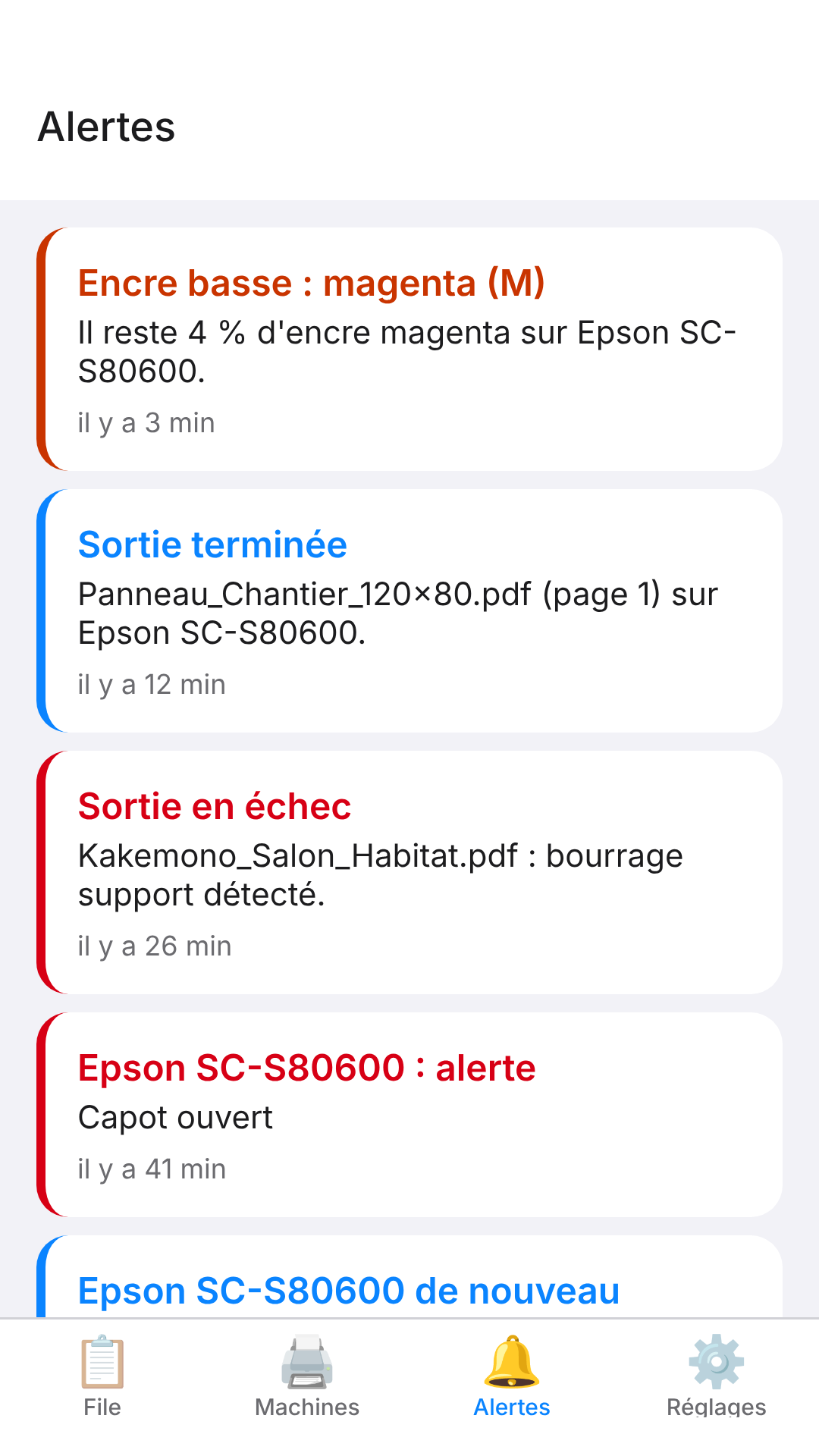
The Alerts tab keeps the last 200 events: machine alerts, nearly empty ink, failed outputs, unreachable machine. A badge marks events not yet seen.
Settings
The Settings tab shows:
- the server, the user and the role (Administrator or Operator; Administrateur, Opérateur);
- the notification switches;
- the Send a test notification button (Envoyer une notification d'essai);
- the Sign out button (Se déconnecter) and the app's version number.
Notifications
Notifications reach you even when the app is closed.
Turning notifications on
- Accept the permission requested by the phone at first sign-in.
- Open the Settings tab and check that Notifications is on.
- Tap Send a test notification: it should arrive within a few seconds.
In Settings, two switches define what you receive:
- Machine errors (Erreurs machine): alerts, ink, failures, unreachable machine.
- Print finished (Fins d'impression): a notification for every finished print. This option is off by default.
Events that notify
| Event | When |
|---|---|
| Machine alert | A new alert appears (cover open, media used up…). Ordinary states (ready, printing, warming up, standby) do not notify. |
| Nearly empty ink | An ink drops to 5% or less. |
| Empty cartridge | An ink reaches 0%. |
| Machine unreachable | Three readings in a row without an answer, then a notification when it answers again. |
| Failed output | A print or a cut fails. |
| Failed render | The render of a job fails. |
| Print finished | Only if Print finished is on. |
After a server restart, no burst of notifications is sent: the server simply picks up the current state.
Cloud notifications
When the app is connected to the cloud, it asks for notification permission right after the first sign-in. It then also receives the platform's notifications: site offline, site back online, new app connected to the account. These notifications follow the Receive alerts box (Recevoir les alertes) in My account on the portal (see E-KO RIP Cloud).
A phone stays registered as long as the app is opened at least once every 30 days.
Demo mode
Demo mode shows the app with made-up data, with no server and no connection.
- On the sign-in screen, tap Try demo mode (Essayer le mode démo).
- Browse the tabs: nothing is saved and nothing is sent.
- To leave, open Settings and tap Leave demo mode (Quitter le mode démo).
Privacy
The app talks only to the shop's RIP server and, if it is used, to the E-KO RIP Cloud platform. The publisher receives no account, no advertising and no audience measurement.
- Credentials are kept in the phone's secure storage and sent only to the server you chose.
- For notifications, a phone token is passed to the server; the messages then go through the Expo notification service, then through Apple or Google.
- Signing out deletes the credentials from the phone and removes the phone from the notification list.
The full policy is published at https://e-ko.rip/app/confidentialite/.
Frequently asked questions
Which address should I enter to connect?
In the shop, the server's local address (for example http://192.168.1.20:8640). Away from the shop, the site's address on the cloud (https://<site>.platform.e-ko.rip) or the Sign in to the cloud button. See E-KO RIP Cloud.
The app cannot reach the server
- Check that the phone is on the shop's Wi-Fi, if you are using the local address.
- Check the address you entered, with no spaces.
- Away from the shop, use the cloud: the local address can only be reached on site.
If the problem persists, see Troubleshooting.
The site is "offline" in the list
The shop's RIP server is not linked to the platform: it is switched off or has no Internet. Check the server on site (see E-KO RIP Cloud).
I do not receive notifications
Check the permission in the phone's settings, the Notifications switch in Settings, then that the RIP server is up to date. Signing out and back in renews the registration.
Can I send a file to print from the phone?
No. Files are sent from a workstation or from the browser (see Install the clients).
Why does printing carry on after Stop?
Stop cancels a waiting or suspended output. A print that has already gone to the machine cannot be interrupted from the app.
A question, a problem?
Write to contact@e-ko.rip.
Found a mistake or something missing? Suggest a fix or write to contact@e-ko.rip.