 E-KO RIP Center
Documentation › Install
E-KO RIP Cloud
Reach the print shop's RIP server from outside, with no VPN and no open port, through the free platform.e-ko.rip.
E-KO RIP Cloud gives access to the shop's RIP server from outside: from home, at a customer's site, on the road. It works with no VPN and without changing anything on the Internet router. The service is free for any E-KO RIP Center server.
What the Cloud is for
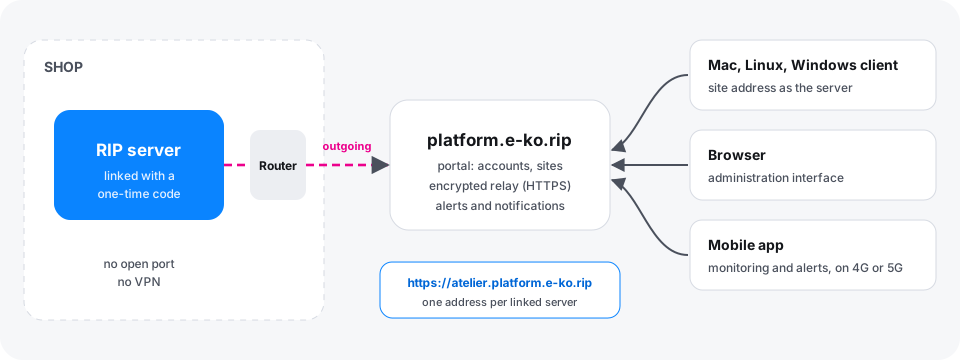
Without the Cloud, the RIP server can only be reached on the shop's network. With the Cloud:
- workstations (Mac, Linux, Windows) connect to the server from anywhere;
- the administration interface opens in a browser, just as in the shop;
- the mobile app follows production away from the shop;
- notifications and e-mails warn you when the server stops responding.
The principle is simple: the shop's server itself opens a connection to the platform. No port has to be opened on the router. Remote workstations and phones go through the platform to reach the server.
Creating an account
The platform's portal is at https://platform.e-ko.rip.
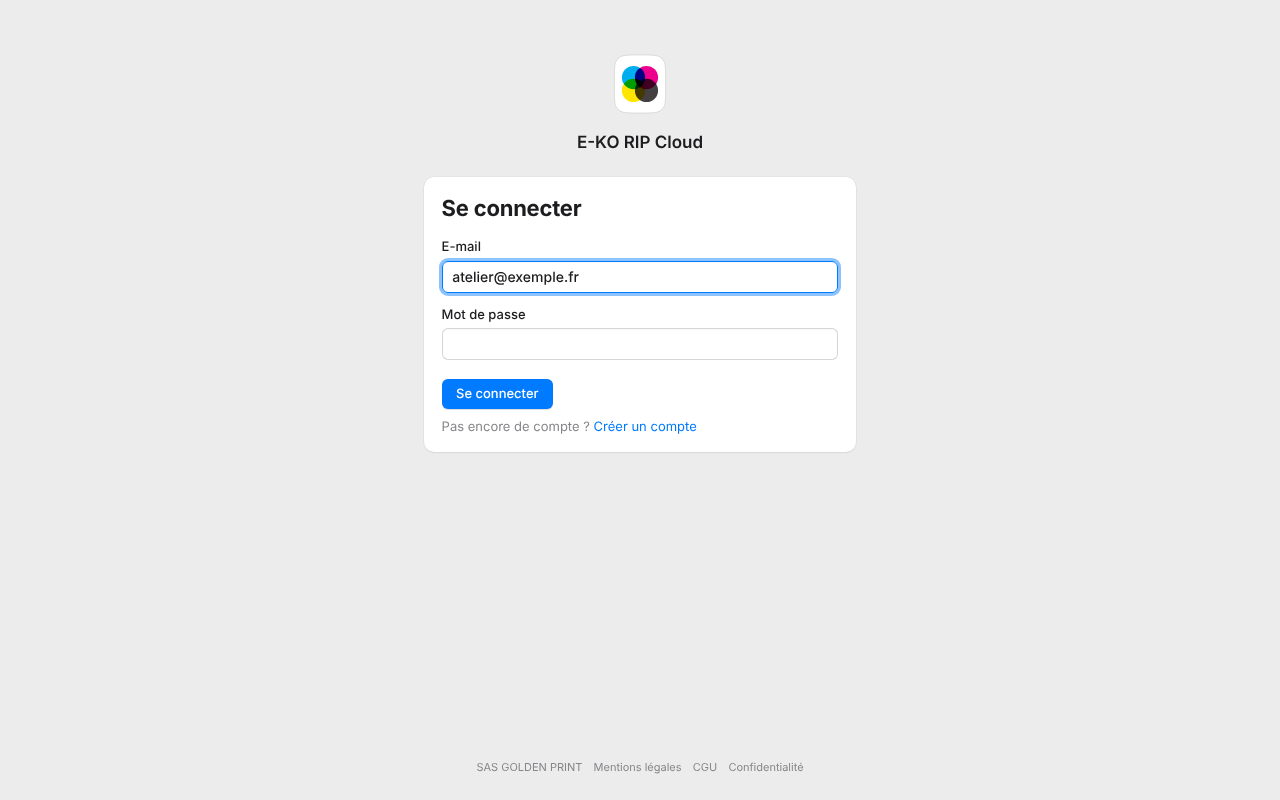
- Open https://platform.e-ko.rip.
- Choose Create an account (Créer un compte).
- Enter the name (or the shop's name), the e-mail address and a password of at least 10 characters.
- Accept the terms of use, then confirm.
If the page offers Google or Facebook, these buttons also let you sign up without a password.
Confirming the e-mail address
A confirmation e-mail is sent when you sign up with a password.
- Open the e-mail sent by E-KO RIP Cloud (
no-reply@e-ko.fr). - Click the confirmation link, valid for 24 hours.
- Click the button on the page to confirm.
Until the address is confirmed, a banner says so on My sites (Mes sites) and My account (Mon compte). It offers Resend the e-mail (Renvoyer l'e-mail). Linking a server is refused until the address is confirmed. The rest of the portal works.
An account created with Google is confirmed automatically.
Linking a RIP server
Linking takes two steps: a code on the server, then entering that code on the portal. Allow two minutes.
Before you start
The server must have at least one user account. Without an account, access to the server is open on the local network, and the Cloud refuses to open so as not to leave the shop open to everyone.
To create an account, see Run the server. The server must also have Internet access (see Install the server).
Step by step
- Open the RIP server's administration interface, with an administrator account.
- Go to System › E-KO RIP Cloud.
- Click Connect to the platform. The server shows a short code, such as
KXRT-4821, valid for 10 minutes. - On the portal, sign in with your account.
- Go to My sites, section Link a RIP server (Rattacher un serveur RIP).
- Enter the code, then click Link (Rattacher).
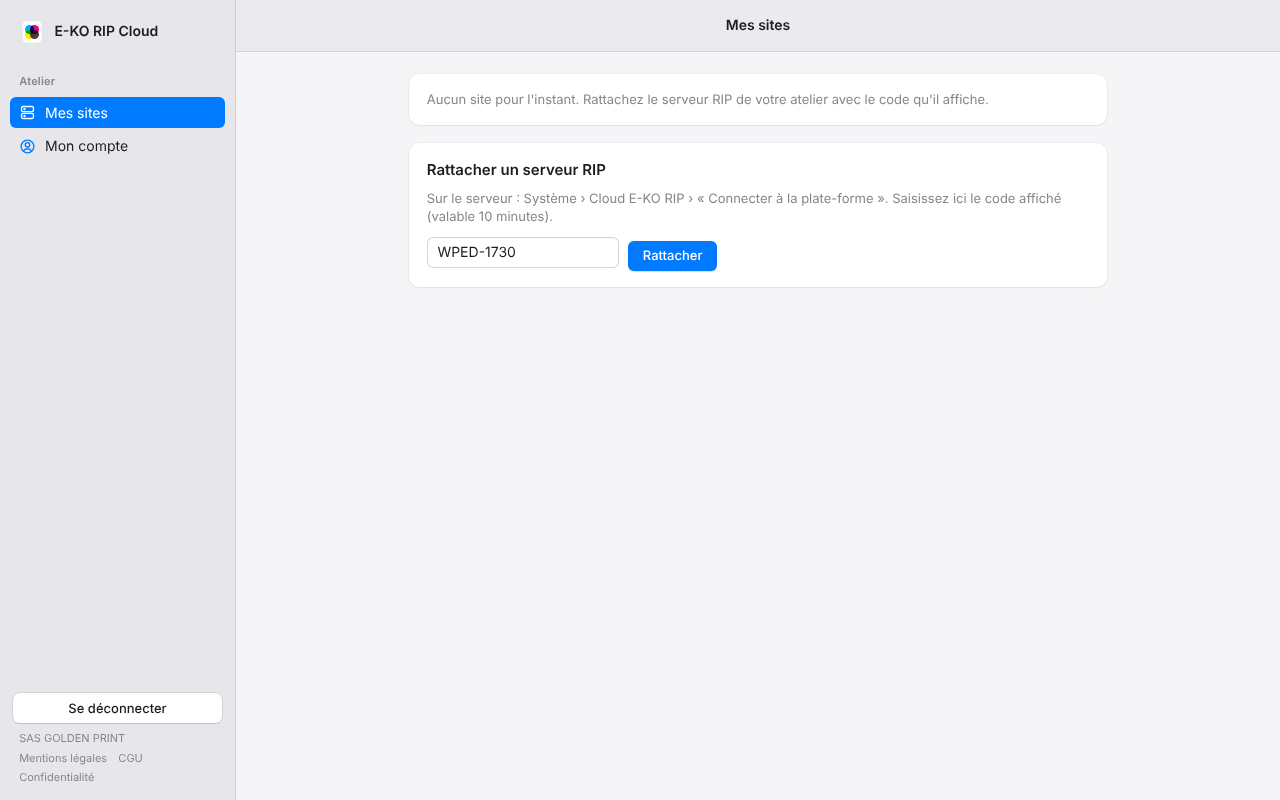
A few seconds later, the server is linked. The System › E-KO RIP Cloud screen shows Connected: reachable remotely and displays the Remote address. The account that entered the code becomes the owner of the site.
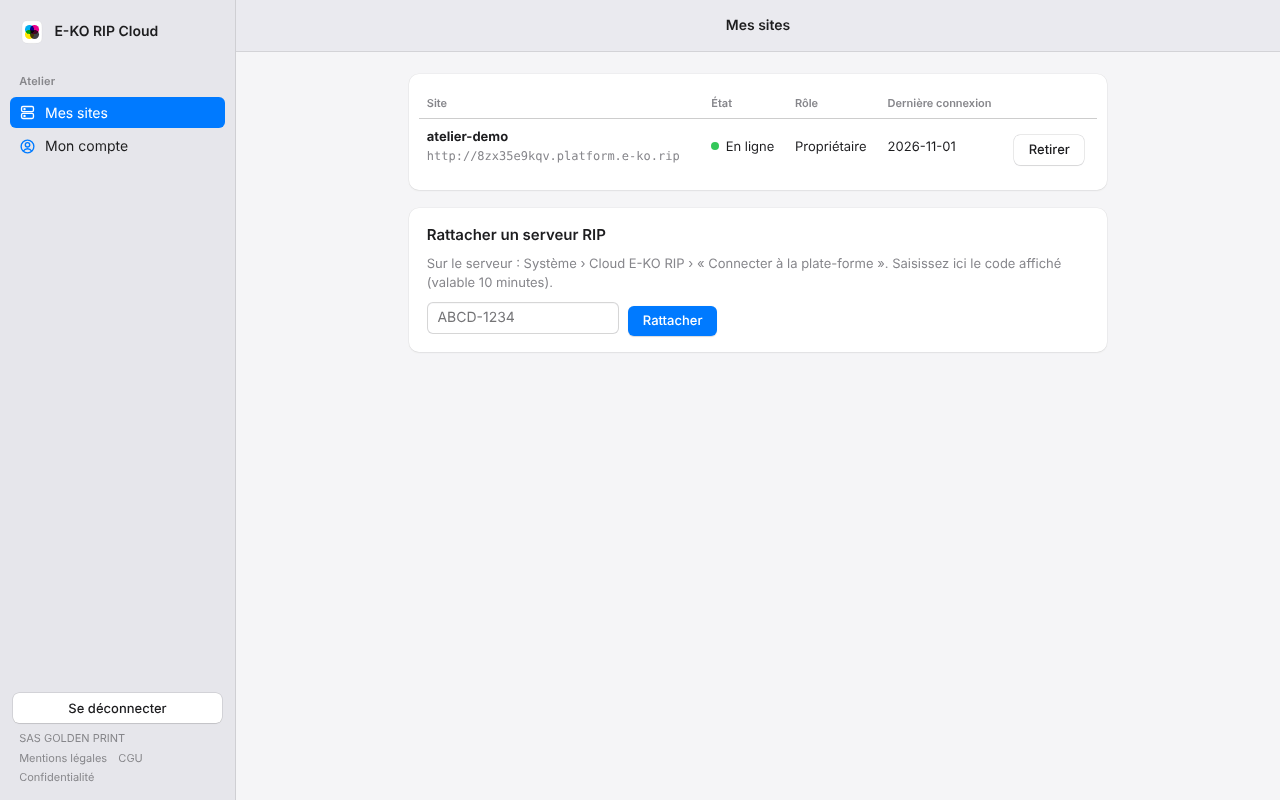
The portal lets you link up to 10 sites per account.
Using remote access
Each site has its own address:
https://<site>.platform.e-ko.ripIt is shown in System › E-KO RIP Cloud on the server, and in My sites on the portal. It is used in three cases.
In a desktop client
- Open the client (see Mac, Linux or Windows).
- Enter the site's address in place of the server's local address.
- Sign in with an account of the RIP server.
In a browser
- Open the site's address.
- Sign in with an account of the RIP server.
The administration interface works just as in the shop.
In the mobile app
Enter the site's address in the Server field, or use Sign in to the cloud (see below). Details in Mobile app.
Signing in to the cloud from the apps
The Mac, Linux and mobile apps have a Sign in to the cloud button (Se connecter au cloud) on their sign-in screen. It saves you from entering an address and a second password.
- Click Sign in to the cloud. The browser opens on the platform.
- Sign in with your account (password, Google or Facebook).
- Authorise the app when the portal asks.
- Go back to the app: it shows the list of the account's sites, online or not.
- Choose the site you want.
Rights in the app follow the account's role on the site: an owner or an administrator is a RIP administrator, an operator is an operator, a read-only account cannot change anything.
An app's access stays valid for about 180 days. Each time a new app is connected, a security e-mail is sent to the account holder.
Disconnecting an app
- Sign in to the portal.
- Open My account.
- In Connected apps (Apps connectées), click Disconnect all apps (Déconnecter toutes les apps).
In the app itself, Sign out of the cloud (Se déconnecter du cloud) removes the device's access.
E-mails from the platform
The platform writes from E-KO RIP Cloud, address no-reply@e-ko.fr. There is nothing to set up. Do not reply to these messages.
| When | |
|---|---|
| Forgotten password | On request, with a link valid for 1 hour, usable once only. |
| Address confirmation | When signing up with a password, link valid for 24 hours. |
| Site offline | The server has been unreachable for 15 minutes. |
| Site back online | The server answers again, only if the "offline" alert was sent. |
| New app connected | An app has just connected to the account. |
| Weekly summary | Every Monday around 8 a.m., for each site. |
Site offline alerts go to the site's owners and administrators. At most one alert is sent per site per hour.
The weekly summary gives, for each site: the number of outages, the total time offline, the longest outage, the alerts sent and the apps connected during the week.
Choosing which e-mails to receive
- Open My account on the portal.
- Tick or untick Receive alerts and Receive the weekly summary (Recevoir les alertes, Recevoir le résumé hebdomadaire).
Both boxes are ticked by default. The "new app connected" e-mail is always sent: it is a security measure.
Forgotten password
- On the sign-in page, click Forgot your password? (Mot de passe oublié ?).
- Enter the account's e-mail address.
- Open the e-mail you receive and click the link within the hour.
- Choose a new password.
For security reasons, the page answers the same way whether the address exists or not. The new password closes all of the account's sessions and disconnects its apps.
Notifications
The same events as the e-mail alerts can arrive as notifications: site offline, site back online and new app connected. They follow the Receive alerts box.
In the browser
After the first sign-in to the portal, the My sites page offers Receive alerts on this computer? (Recevoir les alertes sur cet ordinateur ?)
- Click Enable (Activer).
- Allow notifications when the browser asks.
The Later button (Plus tard) postpones the choice, and the question does not come back afterwards. To decide later:
- Open My account.
- In the Notifications on this device card (Notifications sur cet appareil), click Enable browser notifications (Activer les notifications du navigateur).
- To stop on one browser, click Remove (Retirer) next to it.
Notifications arrive even when the portal page is closed, as long as the browser is running.
In the Mac, Linux and mobile apps
The apps ask for permission to show notifications right after the first sign-in to the cloud. Just accept. If permission was refused, restore it in the system or phone settings.
Managing your account
My account brings together:
- the name, the e-mail address and the sign-up date;
- the linked sign-in methods (password, Google, Facebook);
- the e-mail boxes and the Notifications on this device card;
- the list of Connected apps;
- account deletion.
Deleting your account
- Open My account.
- Go to the Delete my account section (Supprimer mon compte).
- Confirm.
Unlinking a server
Unlinking cuts remote access, without touching the server or its data.
From the server
- Open System › E-KO RIP Cloud.
- Click Unlink from the platform.
- Confirm.
Remote access stops immediately. To restore it, link the server again with a new code.
From the portal
- Open My sites.
- Click Remove (Retirer) next to the site, then confirm.
Only the owner can remove a site.
What never goes through the Cloud
Some functions stay reserved for the shop, even with the Cloud:
- the ERP bridge and its settings;
- forwarding jobs between two RIPs;
- linking and unlinking the Cloud itself: these are done only from the shop.
The server refuses these requests when they arrive through the Cloud. For safety, it also refuses them when no account is declared on the server.
Security in brief
- No port is open in the shop: the server connects to the platform, never the other way round.
- Each site has its own address, isolated from those of other sites and from the portal.
- An account's password is blocked for 5 minutes after 5 failures.
- The portal passes only the RIP server's session to the shop, never the platform account's information.
Frequently asked questions
The site is "offline"
The shop's RIP server is not linked to the platform.
- Check on site that the server is switched on and has Internet access.
- Open System › E-KO RIP Cloud. The message Platform unreachable points to an Internet connection problem.
- Wait a minute: after an outage, the server reconnects by itself.
If the alert is enabled, a "back online" e-mail confirms recovery.
The code has expired or is refused
The code is valid for only 10 minutes. On the server, click Connect to the platform again to get a new one. If the portal refuses the link, check that the account's e-mail address is confirmed.
The Cloud will not open: "at least one account"
Create an account on the server (see Run the server), then try again.
I forgot my password
Use Forgot your password? on the sign-in page (see above). For a RIP server account, see Run the server.
I do not receive the e-mails
Look in the spam folder. Check the account's address in My account and the boxes ticked. The e-mails come from no-reply@e-ko.fr.
Legal information
- Terms of use: https://platform.e-ko.rip/cgu
- Privacy policy: https://platform.e-ko.rip/confidentialite
- Legal notice: https://platform.e-ko.rip/mentions-legales
A question? Write to contact@e-ko.rip.
Found a mistake or something missing? Suggest a fix or write to contact@e-ko.rip.