 E-KO RIP Center
Documentation › Install
Install the clients
Install and connect the E-KO RIP Center client on Mac, Linux and Windows.
The E-KO RIP Center client is the software for the workstations: you use it to send files, follow the jobs and the queue, and start printing and cutting. It exists for Mac, Linux and Windows; all of them talk to the same server and see the same queue.
What the client does
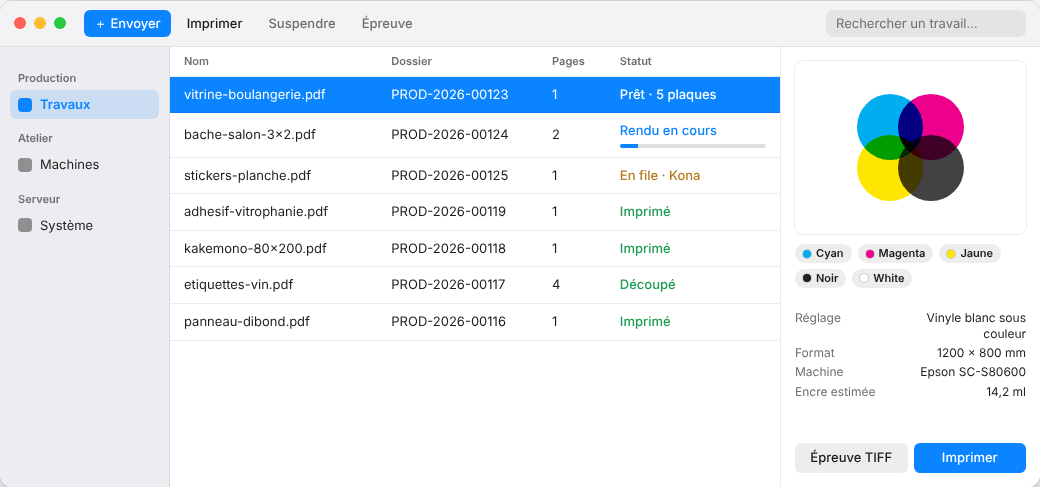
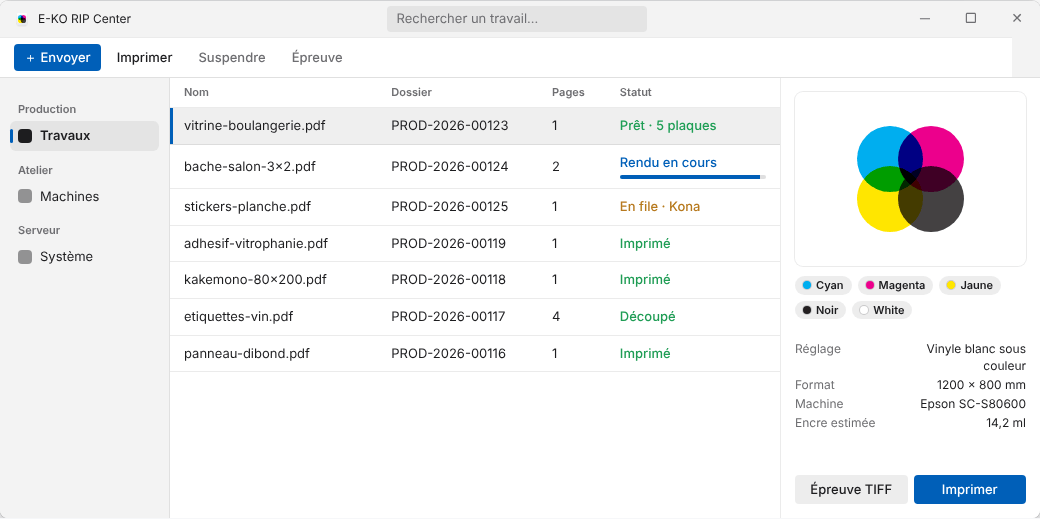
The window has three panes:
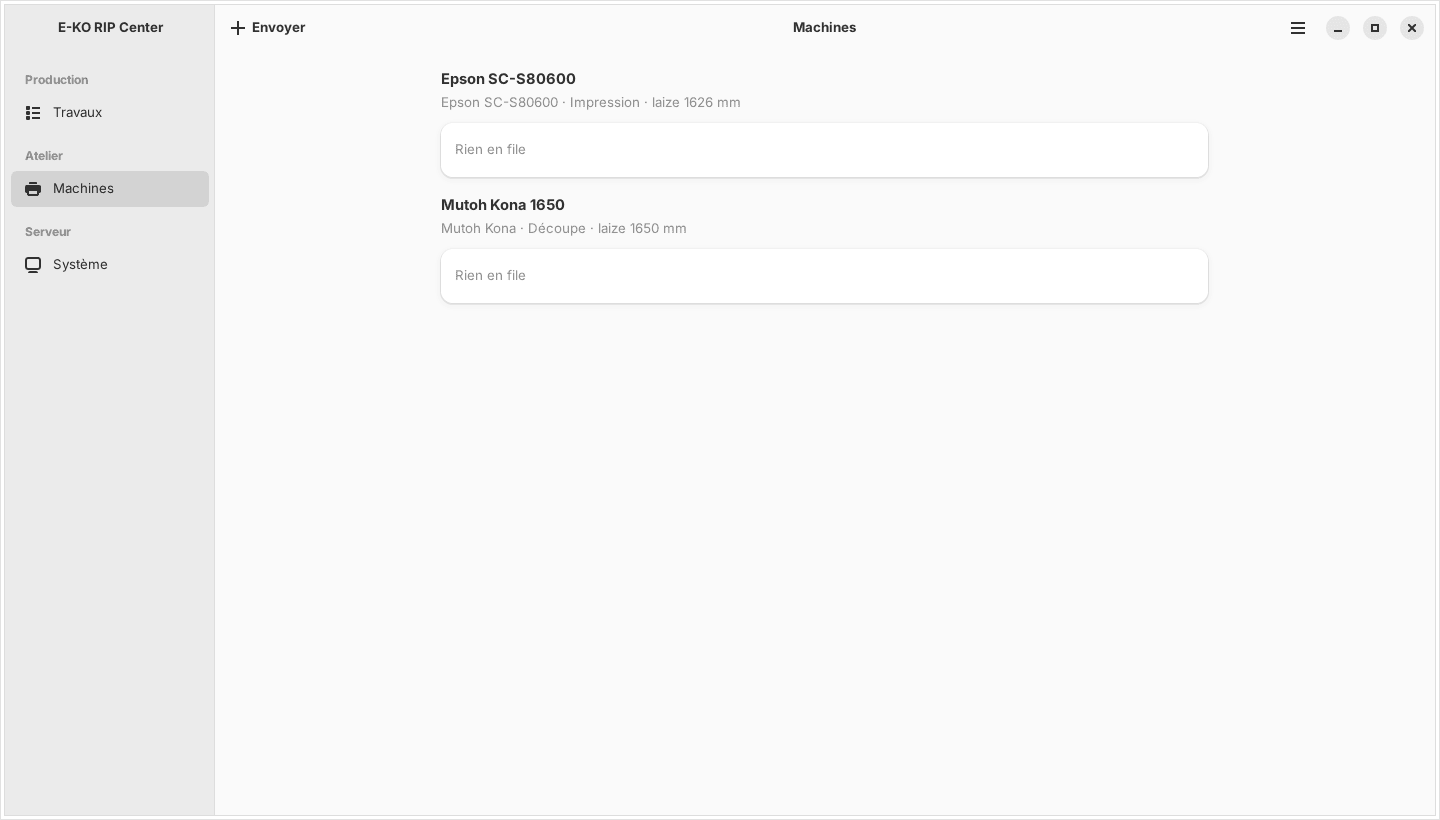
- on the left, the sidebar: Jobs, Machines, System (Travaux, Machines, Système);
- in the centre, the job table (name, folder, pages, status, date), with a search box;
- on the right, the inspector for the chosen job: preview, job ticket, ink plates, alerts and the actions Print (Imprimer), Retry (Relancer), TIFF proof (Épreuve TIFF) and Delete (Supprimer).
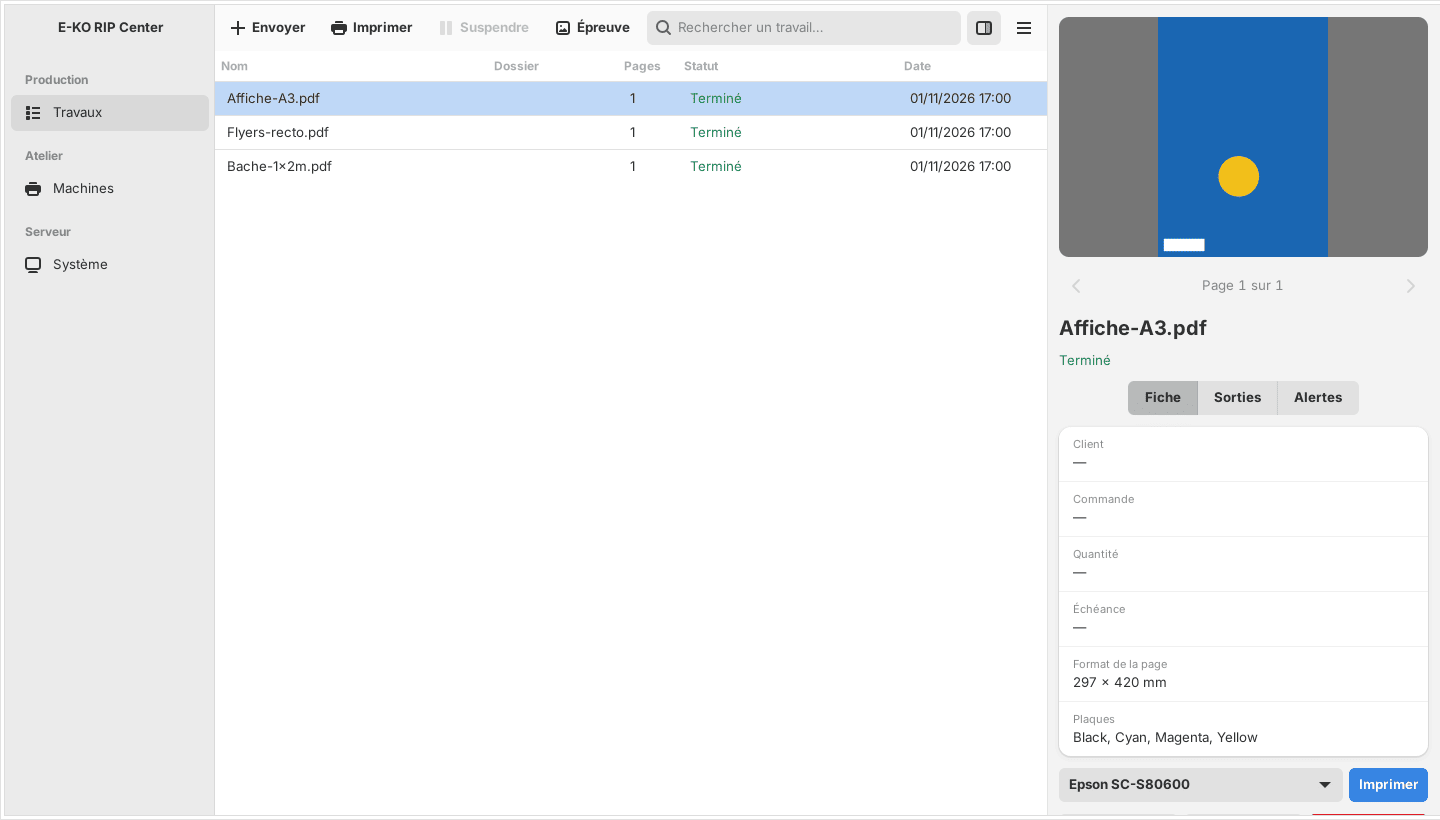
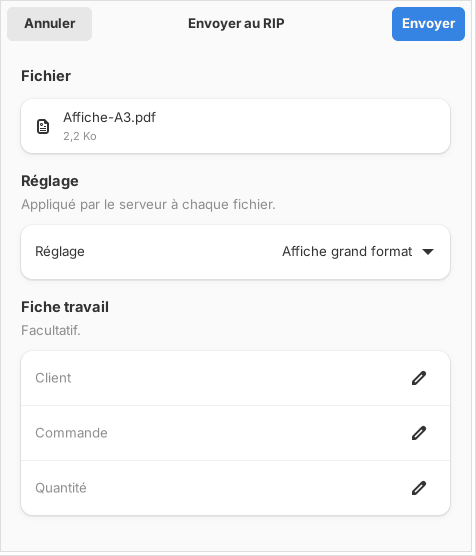
You send a file by dragging it onto the window (or onto the Dock icon on Mac), or with the + Send (+ Envoyer) button: the client asks which preset to apply and, optionally, the customer, the order and the quantity. Accepted formats: PDF, PDF-compatible AI, SVG, TIFF, PNG and JPEG. A notification tells you when the render is ready.
The full settings screens (machines, media, colour, cutting, accounts, backup, Cloud) open from the Administration… menu. How to use them is explained in the user guide.
Mac client
Requirements: macOS 14 (Sonoma) or later, Apple Silicon or Intel Mac.
- Download the client: e-ko.rip/telecharger/mac (
.dmgfile of the latest version). - Open the
.dmgand drag E-KO RIP Center into Applications. - Launch the application. It is signed and checked by Apple: it opens with no warning.
- At first launch, macOS asks for access to the local network: accept, otherwise the server is not found.
Updates: download the new version and replace the application. The server and the client are updated separately; a client slightly older than the server keeps working.
Useful menus: Server › Change server… (Serveur › Changer de serveur…), Server › Administration…, Server › Sign out (Serveur › Se déconnecter), Help › Report a problem… (Aide › Signaler un problème…).
Linux client
Requirements: Ubuntu 24.04 or later, or Debian 13 (GNOME desktop recommended), 64-bit PC.
Install with a single command; the E-KO repository is added to the system:
wget -qO- https://apt.e-ko.fr/rip/installer | sudo shThe client appears in the applications as E-KO RIP Center. It is then updated along with the rest of the system:
sudo apt update && sudo apt upgradeMain menu (☰ button at the top right): Administration…, Report a problem… (Signaler un problème…), Change server… (Changer de serveur…), Sign out (Se déconnecter), About E-KO RIP Center (À propos d'E-KO RIP Center).
Windows client
Requirements: Windows 10 or 11, 64-bit.
- Download the installer: e-ko.rip/telecharger/windows.
- Run the
…_x64-setup.exefile and follow the wizard. - The client is not signed yet: if Windows shows "Windows protected your PC", click More info then Run anyway (once per workstation).
Connecting to the server
At first launch, the connection screen looks for E-KO RIP servers on the local network by itself and lists them under Servers found on the network (Serveurs trouvés sur le réseau; name, address, version): one click is enough.
- Search again (Rechercher à nouveau) repeats the search (about 3 seconds).
- If nothing appears, enter the address under Enter an address (Saisir une adresse), for example
192.168.1.20:8640. Discovery does not cross routers or VPNs. - If the server has accounts, the client then asks for the name and password. The session lasts 12 hours.
The client remembers the server. To change it: Change server… (Cmd + Shift + S on Mac).
From outside the shop
If the server is linked to E-KO RIP Cloud, enter the site's address, for example https://atelier.platform.e-ko.rip, then sign in with your server account. With the Sign in to the cloud button (Se connecter au cloud; Mac and Linux clients), the client opens the browser so you can sign in to your Cloud account, then lists your sites: one click is enough.
Several servers
A client talks to only one server at a time. To switch from one shop to another (or from the local network to the Cloud), use Change server…: the list offers the servers found and the address entered last time.
Found a mistake or something missing? Suggest a fix or write to contact@e-ko.rip.